How to attach a file to a transaction
How to attach a file from your library to a transaction, what stays where afterwards, and what the Shared switch on one attachment actually gives away.
Attach a file
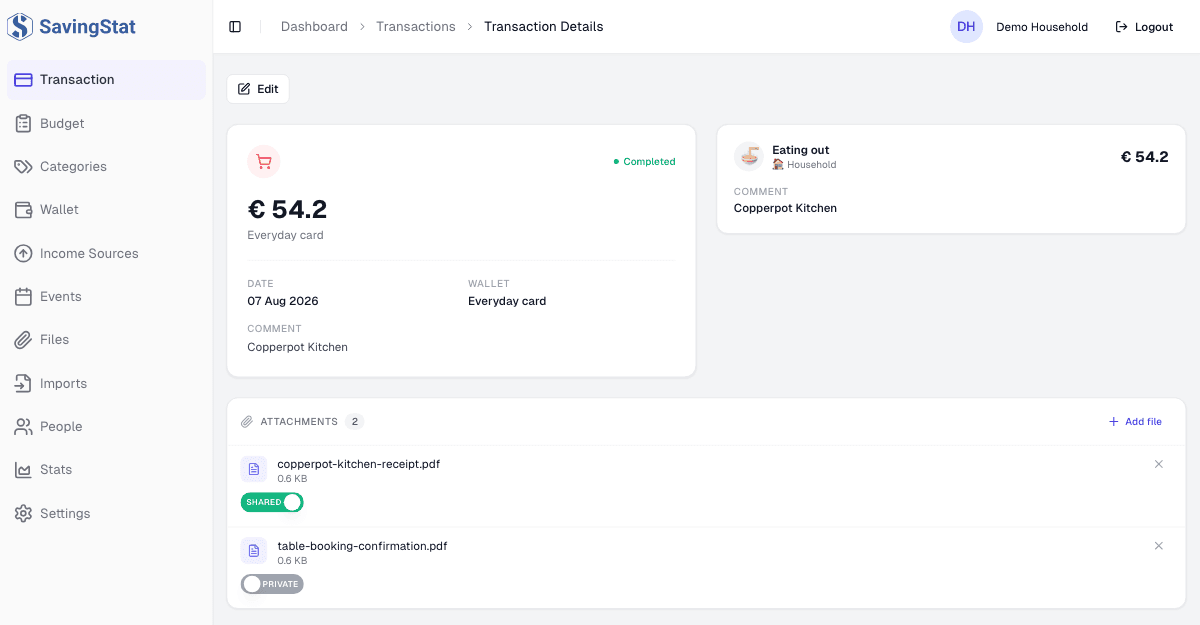
Open the transaction and go to the Attachments card at the foot of its page. The same card sits in the preview panel that opens when you click a row in the transaction list, so a quick attachment needs no page of its own.
- Choose Add file.
- Upload new takes a file from your computer. From library picks one you have already uploaded; you can search it by name, and anything already on this transaction is left out.
- Leave the Share with budget members checkbox clear to attach the file privately.
- Press Attach.
The file stays in your library
Attaching links a file to a transaction rather than moving it. It stays in Files, and one file can be linked to several transactions at once, which is what a receipt covering two separate payments needs.
The file's own page in the library lists the transactions it is attached to, so you can travel in either direction.
Removing an attachment asks you first and removes only the link. Deleting the file in the library is a different action, and it clears every transaction the file was on.
Shared or private, one file at a time
Each attached file carries its own switch reading Shared or Private. Sharing is set per attachment, not per transaction, so a receipt can be shared while the statement directly beneath it stays private.
Anything you attach yourself starts private unless you ticked the box in the attach dialog. Private means you are the only person who can list that file or download it.
Only the transaction's owner sees the switch. Everyone else is sent the shared rows and nothing more, so there is no state for them to change, and what reaches them is the file itself rather than the notes or extracted text you keep alongside it.
Who a shared file reaches
Shared offers that one file to the accepted members of the budget the transaction is filed under. They can list it and download it. Sharing a file shares neither the transaction nor the other files on it.
The budget in that sentence is the one recorded on the transaction record itself, and only an import ever writes it. A transaction you entered by hand keeps its budgets on its expense lines, and the sharing check does not read those.
So on a row you typed in, the switch moves and the setting saves, but it reaches nobody: the record names no budget, so there is no membership to test against. Treat the switch there as a note to yourself. The Transactions article explains where a budget sits on each kind of record.
What an import attaches
An import attaches its own source file to every transaction it creates, so the statement or photograph a row was read out of stays reachable from that row.
The import also chooses the sharing, by kind. A receipt scan arrives Shared, because the picture shows that one purchase. A statement arrives Private, because it carries every other row in the file as well. Either can be changed afterwards, under the same rule as above.
A photograph, whether imported or attached by hand, can also be read out into its merchant, line items and totals. The guide on reading a receipt covers that.