Find a transaction
Turning to a date, changing the order, the four groups in the filter drawer, and why drafts are not among the rows you are searching.
Where the list is
Transaction in the sidebar opens every published transaction you have, twenty-five to a page, newest first.
The toolbar above the rows holds the three things this guide is about: the filter drawer, a date picker, and a toggle that swaps the table for a card layout.
Turn to a date
Pick a date does not filter anything out. It works out which page that date falls on and takes you to it, which is the difference between hiding the rest of your history and scrolling past it.
If nothing was recorded on the date you chose, you land on the page holding the nearest date further along the list. If there is nothing further along, you land on the last page. Paging on from there drops the date again, so you carry on through the list normally instead of being pulled back.
Change the order
The Date column header flips between newest first and oldest first. The drawer carries the same choice as a Sort group, which is how to reach it in card view, where there is no header to click.
The ordering is applied across the whole list rather than to the rows in front of you, so oldest first really does begin at your first transaction. Newest first is the default and leaves no trace in the address bar.
Narrow it down
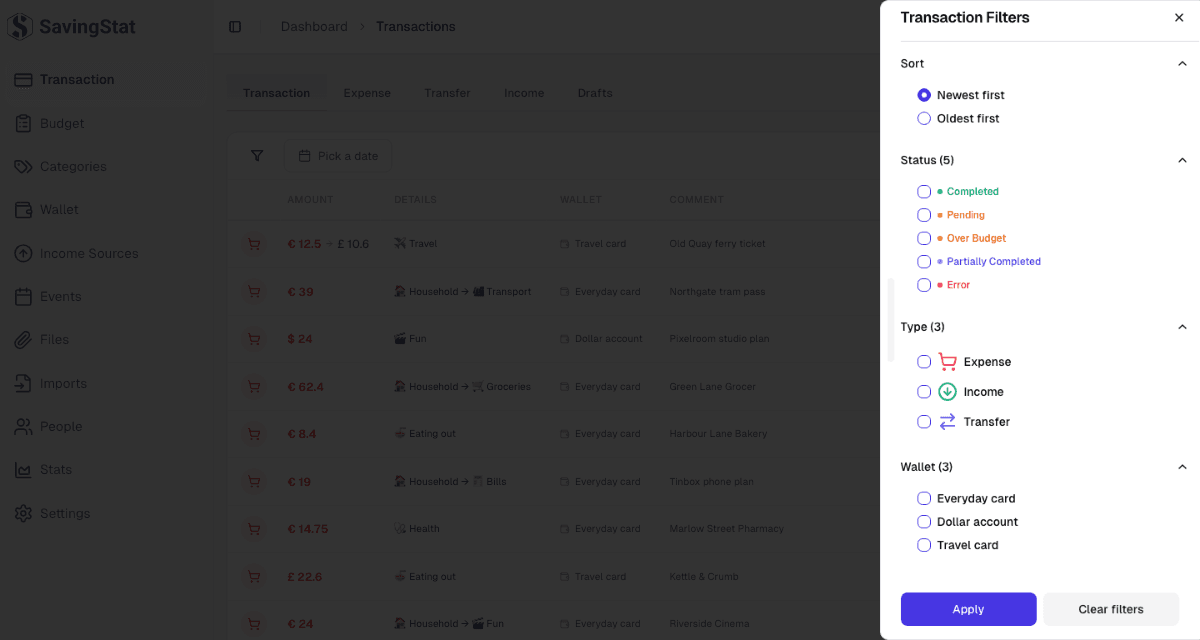
The filter button opens Transaction Filters, which holds four groups. Sort comes first, carrying the same date order the column header gives you. Below it are three multi-select groups: Status, Type and Wallet, each heading counting what it offers.
Ticks inside a group widen the result and the groups narrow each other: two statuses ticked means either status, and adding a type means either of those statuses and that type. Nothing takes effect until you press Apply. Clear filters empties the drawer without closing it, and that too needs Apply before the list changes.
The wallet group reads a transfer from both ends. Pick a wallet and you get what left it and what arrived in it, so the receiving side of a transfer is not lost.
The view is in the address bar
The filters, the order and the page are all written into the URL, comma separated where a group holds more than one value. A narrowed list is therefore a link: bookmark it, or send it to whoever asked.
Applying filters or changing the order returns you to page one, since the page number you were on described a list that no longer exists.
Drafts are not in this list
Drafts have their own tab and their own page, and this list never shows them. That is why Status offers no Draft option: no tick in the drawer could bring one back, because a draft is not part of what this page reads.
Review AI drafts covers that screen. Transactions explains why status and type are separate questions to begin with.